Directory / plugin
Debug Log Router
v1.0.0 · by emberfox
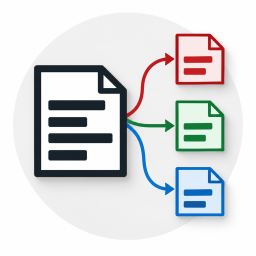
Splits the WordPress debug log into seven files by request type and shows the logs right in the admin.
About this plugin
Most debug log tools show you the one debug.log WordPress writes. Debug Log Router splits it by the kind of request instead: an error a visitor hit on the front end, a warning from the admin, and a failure in a background cron task land in different files. You see at once what the error cost, and cron errors, which never show up on any page, stop drowning in the rest.
Seven contexts, seven files
front.log— the public siteadmin.log— the admin areaajax.log— admin-ajax requestsrest.log— the REST API, a custom REST prefix includedcron.log— WP-Croncli.log— WP-CLIxmlrpc.log— XML-RPC
Files are created as they are needed: on a site without WP-CLI, cli.log never appears. Entries are written in the usual PHP log format, so the files still open in any text editor and over FTP.
Reading and downloading
- Tools Debug Logs, Logs tab: newest entries first, 50 at a time, up to 500 in the browser.
- The plugin’s own journal is there too: what it changed in
wp-config.phpand in the log directory, and what it could not do. - Any log and the journal can be downloaded as a file from the Logs tab. The whole log directory downloads as a zip archive from the Settings tab if the server has the PHP
zipextension; without it, the files download one by one. - The old
wp-content/debug.logis left alone and opens in the same viewer. - Logging is switched on and off with a single toggle on the Settings tab.
- Errors are hidden from visitors by default. You can show them or leave it to the server.
How the plugin handles wp-config.php
WordPress reads its debug constants before any plugin loads, so there is no way around wp-config.php. The plugin changes it once:
- Activation changes nothing. The edit happens only when you press the button on the Status tab, and before you do, the tab shows exactly what will be added.
- The edited file is checked before it replaces the original: if the result does not parse, or anything else in it is not as expected,
wp-config.phpstays exactly as it was. Its permissions, owner and group are kept. - A short block is added that loads the plugin’s loader and names the plugin’s folder in uploads. All settings live there and in the database: switching logging and changing other settings never touch
wp-config.phpagain. - Existing
define()lines forWP_DEBUG,WP_DEBUG_LOGandWP_DEBUG_DISPLAYare not deleted but commented out, markedDLOGR-DISABLED. - If the file cannot be written, the plugin shows the ready-made snippet, the line number where it goes and a copy button.
- The block is removed with the “Remove the setting from wp-config.php” button or when the plugin is deleted, and the commented-out lines are restored.
- If the plugin files are deleted over FTP, the block does nothing and the site keeps working.
- The Status tab warns you when the same constants are defined above the block, and when the block is in place but the plugin is not loaded, for example after the site has moved, and offers a button that writes the block again with the current paths.
Log directory
Logs are kept in wp-content/uploads/debug-log-router/dlogr-logs-xxxxxxxx (wherever your uploads folder is), where the last eight characters are random. The name is the main protection: the directory’s address cannot be guessed. The second layer is an .htaccess file that blocks direct access on Apache and LiteSpeed. If the name ever leaks, one button gives the directory a new one. No PHP files are written to the uploads folder.
Privacy
The plugin sends no data off your server and contacts no external services. Keep in mind that PHP logs themselves can contain paths on disk, pieces of SQL queries and data of your site’s users. That is why only administrators can see them and why the log directory is protected as described above. The plugin’s journal records which user performed each action.
Multisite
WordPress networks (multisite) are not supported: the plugin has not been tested on them and makes no claim to work there.
Languages
The plugin’s texts follow the language of your WordPress profile; translations arrive as language packs from translate.wordpress.org. On the Settings tab the plugin’s page can be switched to English on its own, while the rest of WordPress keeps your language: handy when you look up an error message or send a screenshot to support.
Support
The Support tab explains what the plugin does and where to report bugs, and shows the version and licenses.
Credits
Icons by Lucide (https://lucide.dev), ISC license. Some icons come from the Feather project, MIT license. The license texts are in assets/icons/LICENSE.